Customizer
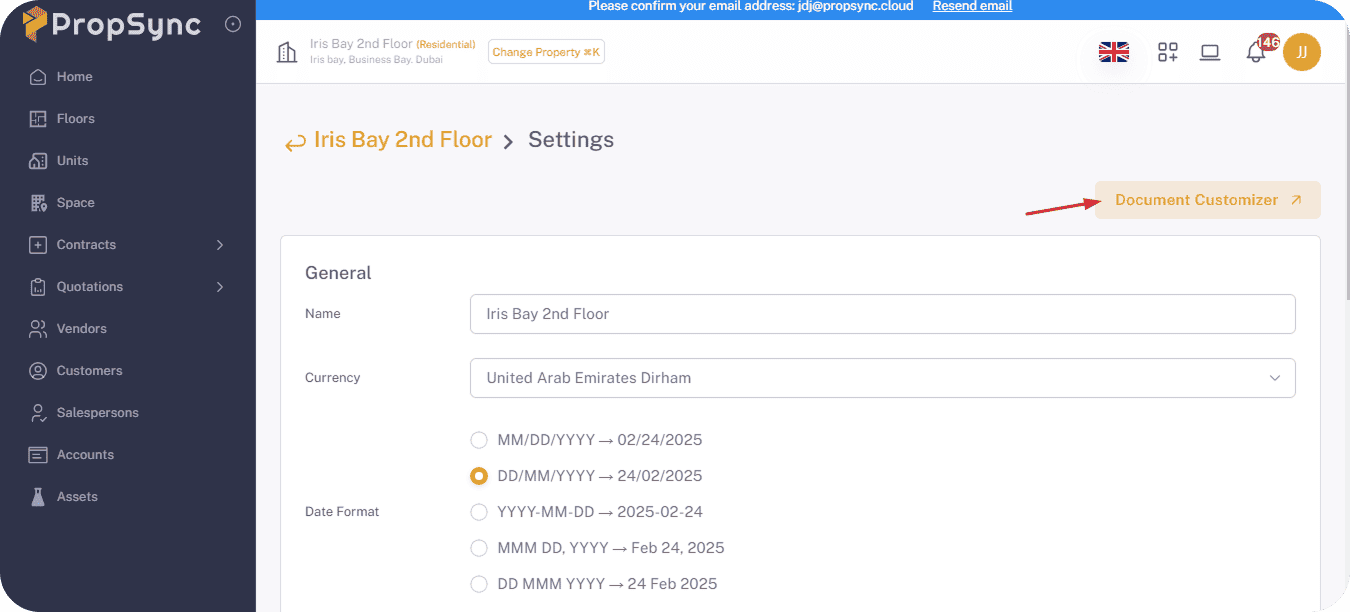
1- Listing
- Open the PropSync dashboard.
- Go to the Properties section from the shorcuts.
- Click on the Settings Button.
- Click on the Document Customizer Button.
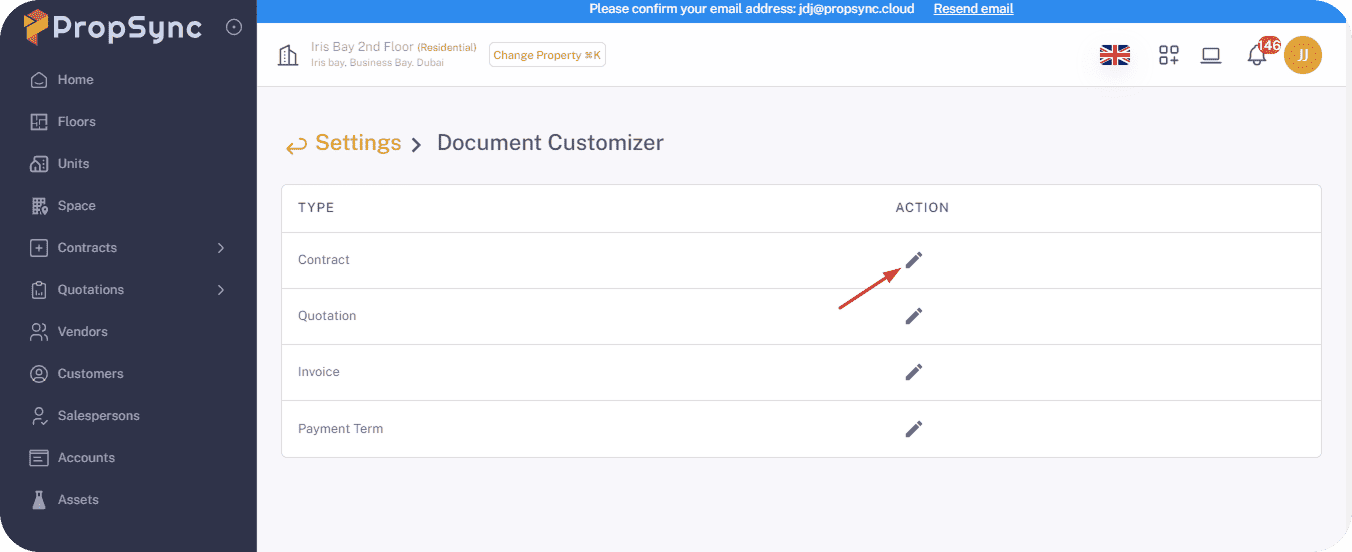
2- Edit
- Click on the pencil icon for edit the customizer.
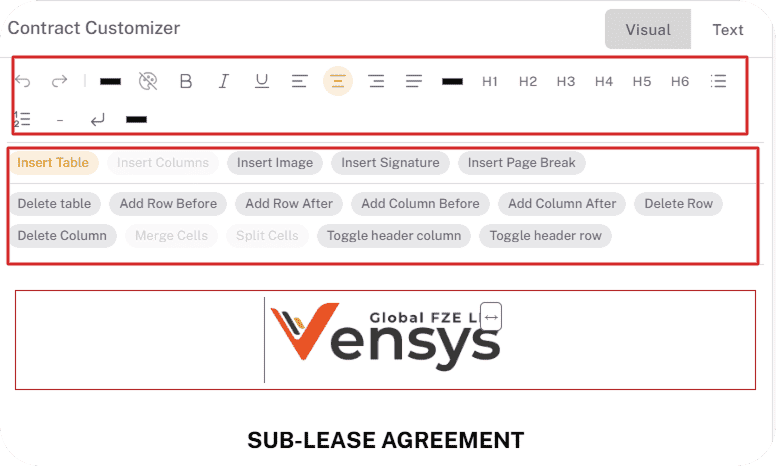
The Customizer Editor is divided into three main sections:
Typography
-
This section allows you to customize the document's text appearance, including:
-
Heading Font Size – Adjust the size of document headings.
-
Font Family – Choose a preferred font style.
-
Page Margins – Set the margins for your document layout.

Templates
Contains predefined sections such as:
- Headers
- Properties
- Other structured content elements to simplify document formatting.

Main Editor
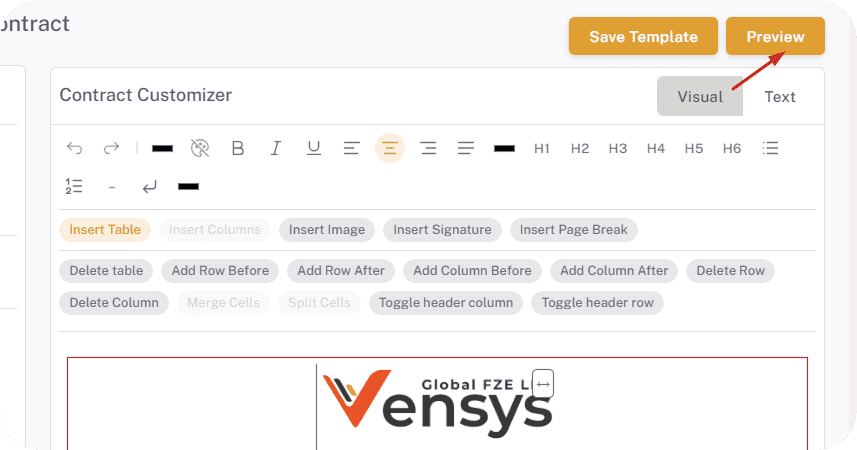
This section provides multiple editing options, including:
-
Tables – Insert and customize tables.
-
Text Editing Options – Bold, Italics, Underline, Strikethrough, etc.
-
Colors & Formatting – Change text and background colors.
-
Alignment – Adjust text alignment (left, center, right, justified).
-
After edit the document click on the Save Templates button.
3- Preview
- Click on the Preview button.
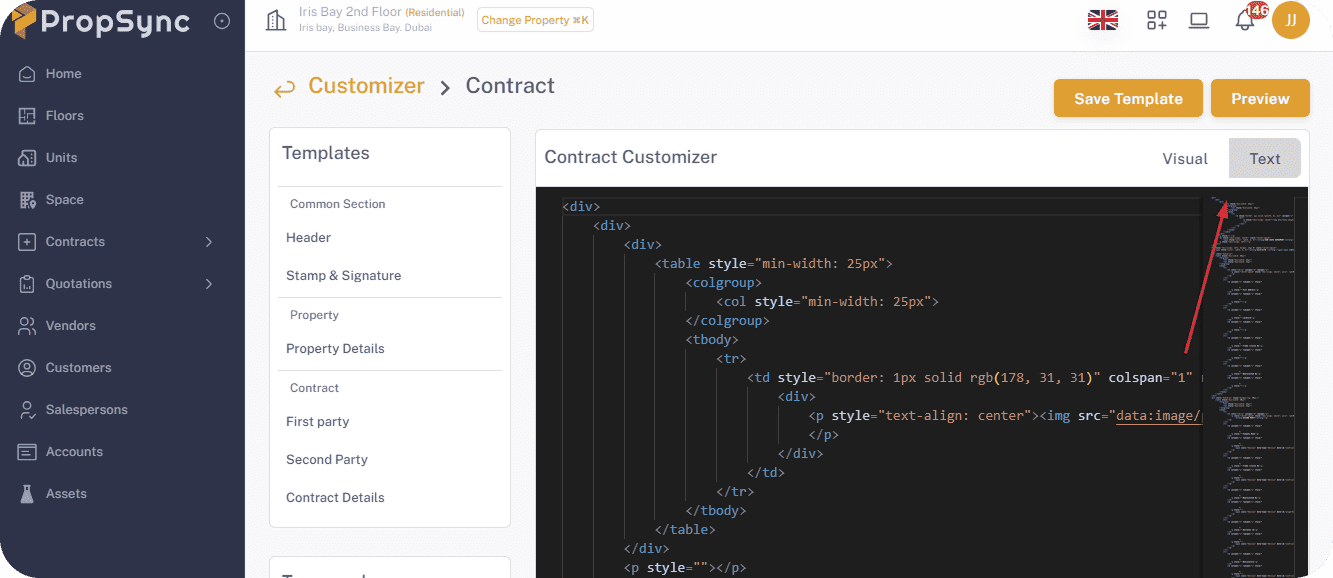
4- Customize Editor
- In this section, you can also add custom HTML to enhance the editor's functionality.
- After update the text click on the Save Templates button.